App Drive guide
App Drive is the platform for publishing, sharing and monitoring business web applications, including those built with AI tools such as Lovable, Bolt, v0, Claude and Cursor. It also enables agencies to deliver their clients' applications under their own brand. This guide describes features, usage and roles: from setting up the organization to invitations, from publishing to sharing, through to monitoring and reports.
Contents
- Overview
- Audience
- Glossary
- Getting started
- Organizations
- Invitations
- Teams and permissions
- Publishing platforms
- Using platforms
- Company brand
- Cloud data
- Partner agencies and clients
- Errors and usage with AI
- Reports and integrations
- Plans and subscription
- Account
- Security and privacy
- FAQ
The screenshots show the Italian interface; the app is also available in English (Account › App language).
Overview
Agencies and software houses build custom web applications for their clients: CRMs, order management, dashboards. Traditionally they deliver them as plain links, with different addresses, credentials and servers: the client ends up managing fragmented tools rather than a coherent service.
With App Drive each client has a single application, under the agency's brand, that brings together all of its platforms:
- available on iPhone, Android and the browser, with one account;
- platforms open inside the app, restricted ones included;
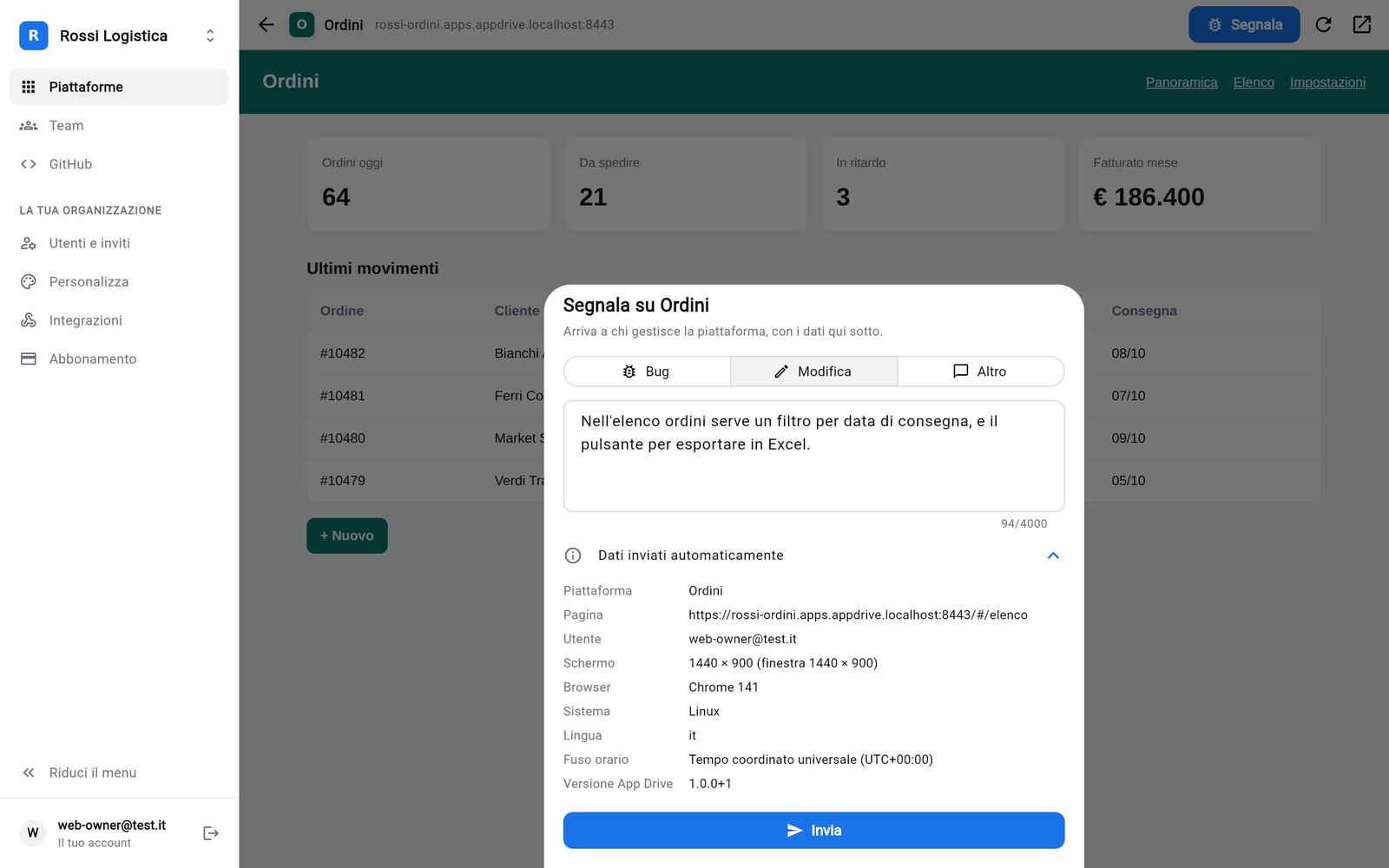
- users have a Report button to send bugs and change requests, with page, screen and browser already filled in;
- applications built with AI (Lovable, Bolt, v0, Cursor) are published quickly from GitHub, a .zip archive, a web address, Vercel or Netlify;
- every push to GitHub automatically builds and publishes the new version;
- sharing works per team or per user, by e-mail;
- access and permissions are defined by the organization: who can view and who can publish each platform.
Audience
| Audience | How App Drive is used |
|---|---|
| Digital agencies | One organization per client: the client reaches all of its applications from a single place, under the agency's brand or its own. |
| Software houses | Custom back-office tools and dashboards delivered as a product, with automatic updates from GitHub. |
| In-house IT at SMEs | Internal tools from departments and sites gathered in one application, with permissions defined per team. |
App Drive hosts static sites: Flutter web, React, Vue, Angular, Svelte, Astro, Next.js with static export, or HTML. Any back end (Supabase, Firebase or a dedicated server) stays on the existing infrastructure: App Drive hosts the front end. An application already published elsewhere (Vercel, Netlify, Lovable or your own domain) is added through its address, with no upload.
Glossary
| Term | Definition |
|---|---|
| Platform | A web application published on App Drive, with its own address https://<name>.apps.somio.it, icon and name. |
| Organization | The space of a client (or of the agency): users, teams, platforms, brand and subscription. Organizations are isolated from one another. |
| Server owner | The operator of App Drive, who creates organizations and invites their administrators. On drive.somio.it this is Somio. |
| Administrator | Manages their organization: users, invitations, brand, integrations and subscription. |
| Member | Uses the platforms they have access to, publishes their own, creates teams and shares. |
| Team | A group of users in the same organization with whom selected platforms are shared. |
Getting started
- Request an invite from the home page. During the beta, access is granted to a limited number of companies at a time: we will contact you as soon as a place is available.
- Once you receive the invite code, open App Drive in the browser at drive.somio.it/app or in the smartphone app.
- Select Have an invite? Sign up and enter the code, your e-mail and a password of at least 12 characters. The account is created with the organization administrator role.
- Customize name, color and logo (Company brand).
- Publish the first platform (Publishing platforms) and invite your colleagues (Invitations).
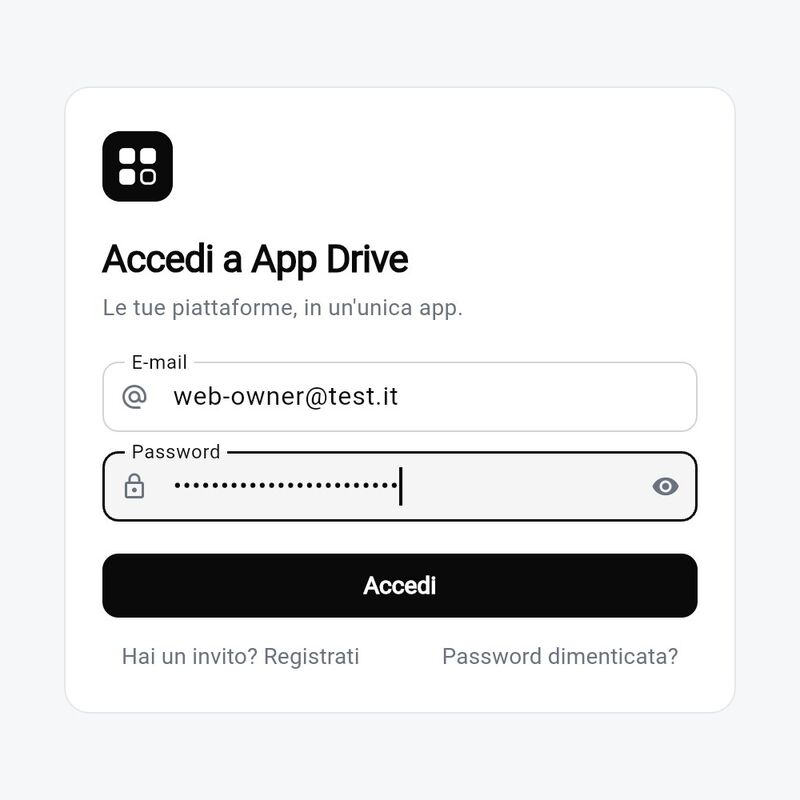
If you forget your password, select Forgot password? on the sign-in page: you will receive a code by e-mail to set a new one.
Navigation. In the desktop browser the menu is on the left, in three groups: the common items (Platforms, Teams, Connections), Your organization (administrators only) and Server (server owner only). The account is at the bottom. On smartphones the same items are in the ⋯ menu at the top right.
Organizations
An organization is a client's space: users, teams, platforms, brand and subscription. Organizations are isolated: a client's users, teams and platforms are neither visible nor reachable by others.
Creating an organization
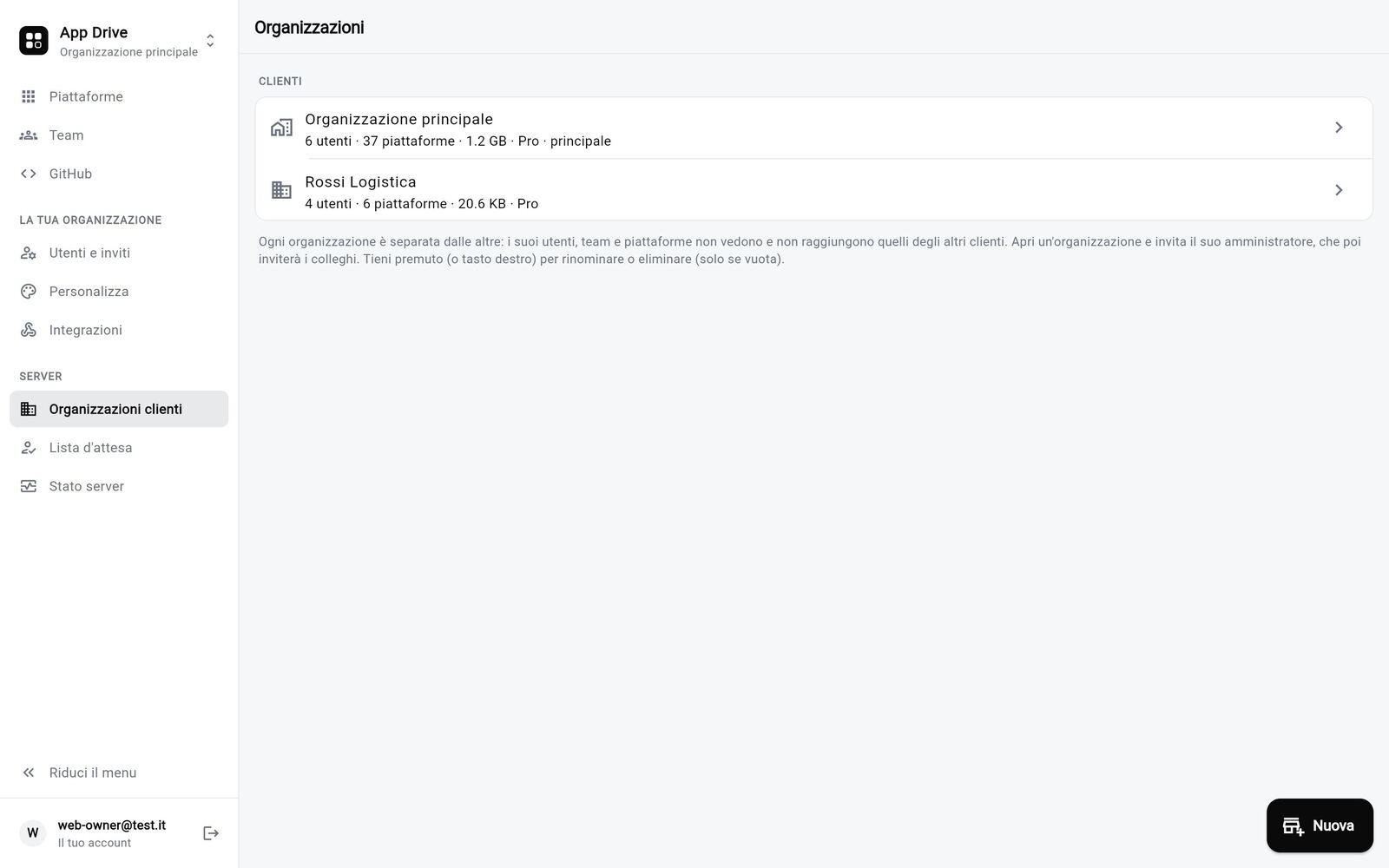
Organizations are created by the server owner, from Client organizations › New: after entering the client's name, they open its page and select Invite with Organization administrator enabled. The invitee receives the code, signs up and becomes the administrator, able to invite their own colleagues.
On drive.somio.it the first organization is created by Somio when you join the beta. To activate more, one per client, write to tickets@somio.it: they are included in the subscription.
Several organizations, one account
The same user can belong to several organizations with the same e-mail and password: agency staff access every client's space, and a client can admit an external consultant.
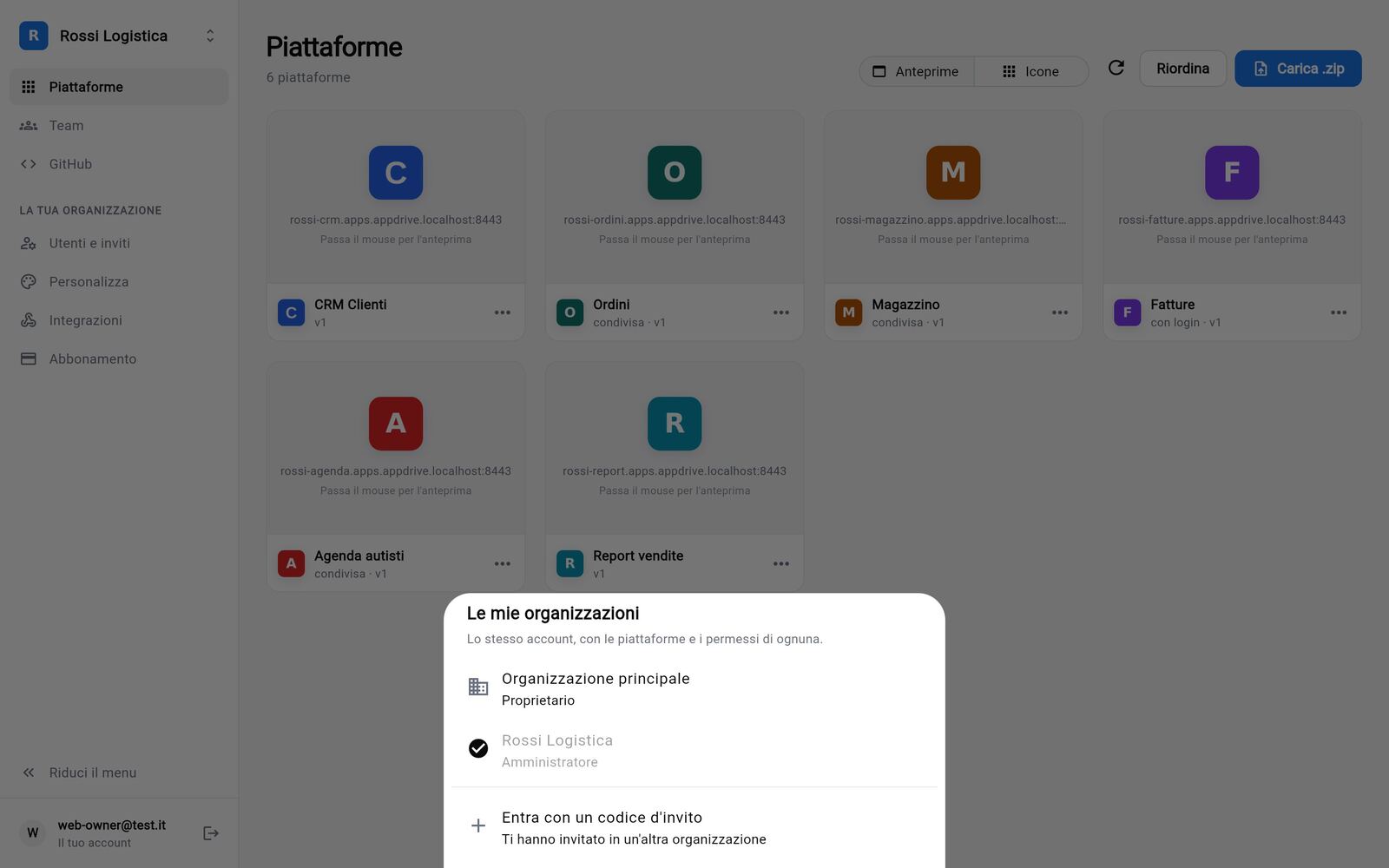
- Switching organization: in the browser, select the name at the top of the side menu; on smartphones, menu ⋯ › Switch organization. My organizations opens, where you choose the one you need.
- Joining another organization with a code you received: from My organizations select Join with an invite code. Alternatively, sign up with the code using the e-mail and password you already use.
- Leaving an organization: Account › Leave followed by the organization's name. Your platforms in that organization are deleted; your membership of the others is unaffected.
Invitations
Access to App Drive is by invitation only: there is no open sign-up. An invitation is a code generated in the app and sent to the person concerned, together with ready-made instructions.
Inviting into your organization (administrators)
- Open Users and invites and select Invite.
- Optional: specify the recipient. If you enter an e-mail, only that address can use the code.
- Set the code's validity in days and select Create invite.
- Share the code. It is shown only once: copy or forward it immediately.
The recipient opens App Drive, selects Have an invite? Sign up and enters the code. If they already have an App Drive account in another organization, they use the same e-mail and their password, or Join with an invite code from My organizations.
The Invites tab lists pending, used, expired and revoked invitations and lets you revoke a code not yet used.
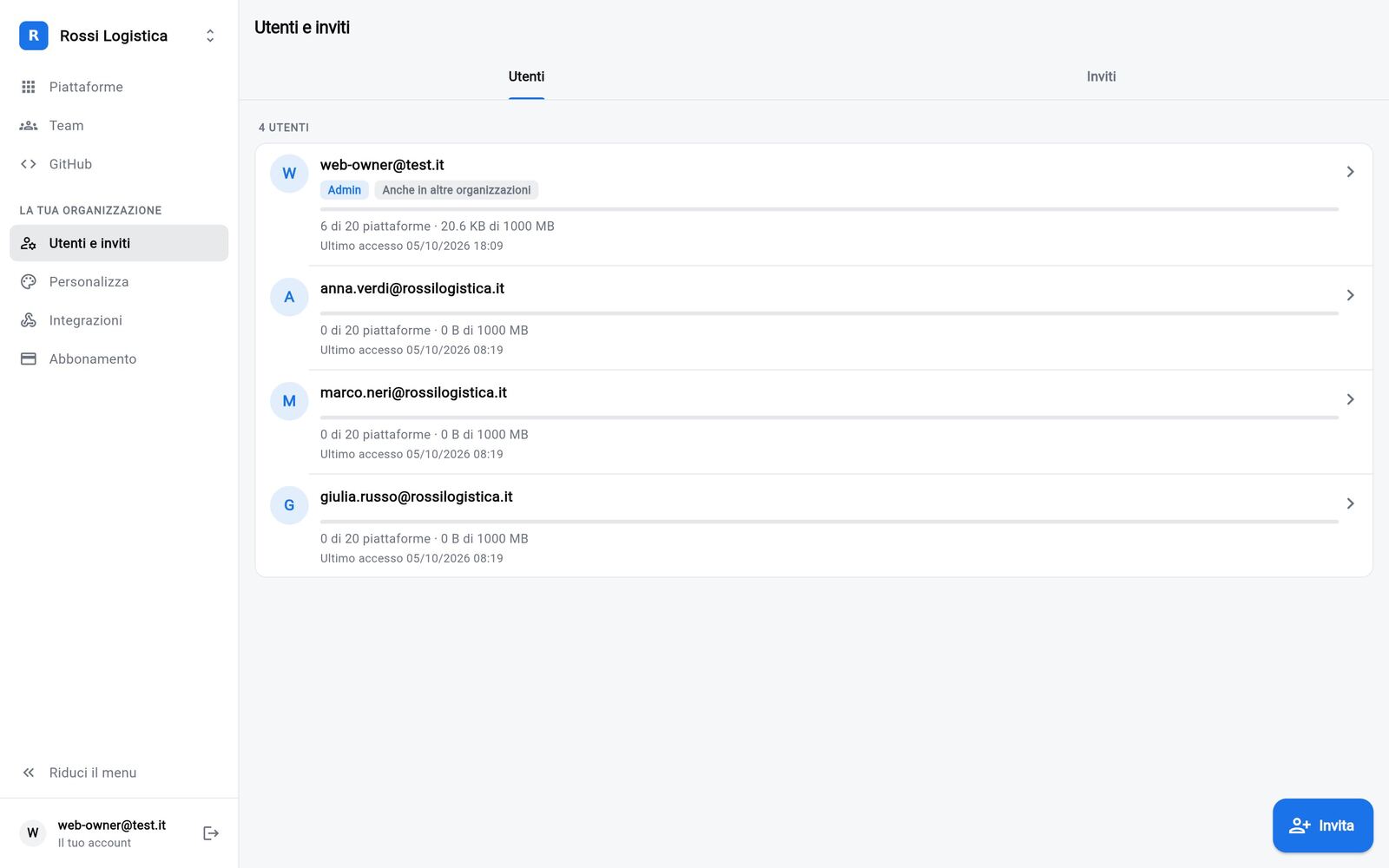
Permission to invite
By default only organization administrators can invite new users. In Users and invites › Invites › Who can invite you can enable Team admins too: team administrators will be able to invite new users directly into their team (see Teams and permissions). Users invited this way still join the organization as members.
Managing users
In Users and invites, selecting a user allows you to:
- suspend them: they lose access and the ability to publish, and their platforms go offline; no data is deleted and they can be reactivated at any time;
- change their limits on storage and number of platforms;
- generate a password reset code, should they not receive the e-mail;
- delete them, together with their platforms.
If the user has the same account in other organizations, Also in other organizations is shown: suspension and deletion apply only in your organization, and the password is reset with Forgot password?.
Teams and permissions
Each user sees their own platforms and those shared with the teams they belong to. A team is a group of users in the same organization, for example "Warehouse" or "Accounting".
Creating a team and adding members
- Open Teams (on smartphones: menu ⋯ › Teams and sharing) and select New team. Its creator becomes its administrator.
- Select Add member: the list of organization users not yet in the team is shown. Search by e-mail, select one or more and confirm with Add.
- For people without an account, choose Add by e-mail: if the organization allows it (Team admins too), App Drive generates a code that registers the person and adds them directly to the team. Otherwise, an organization administrator must invite them first.
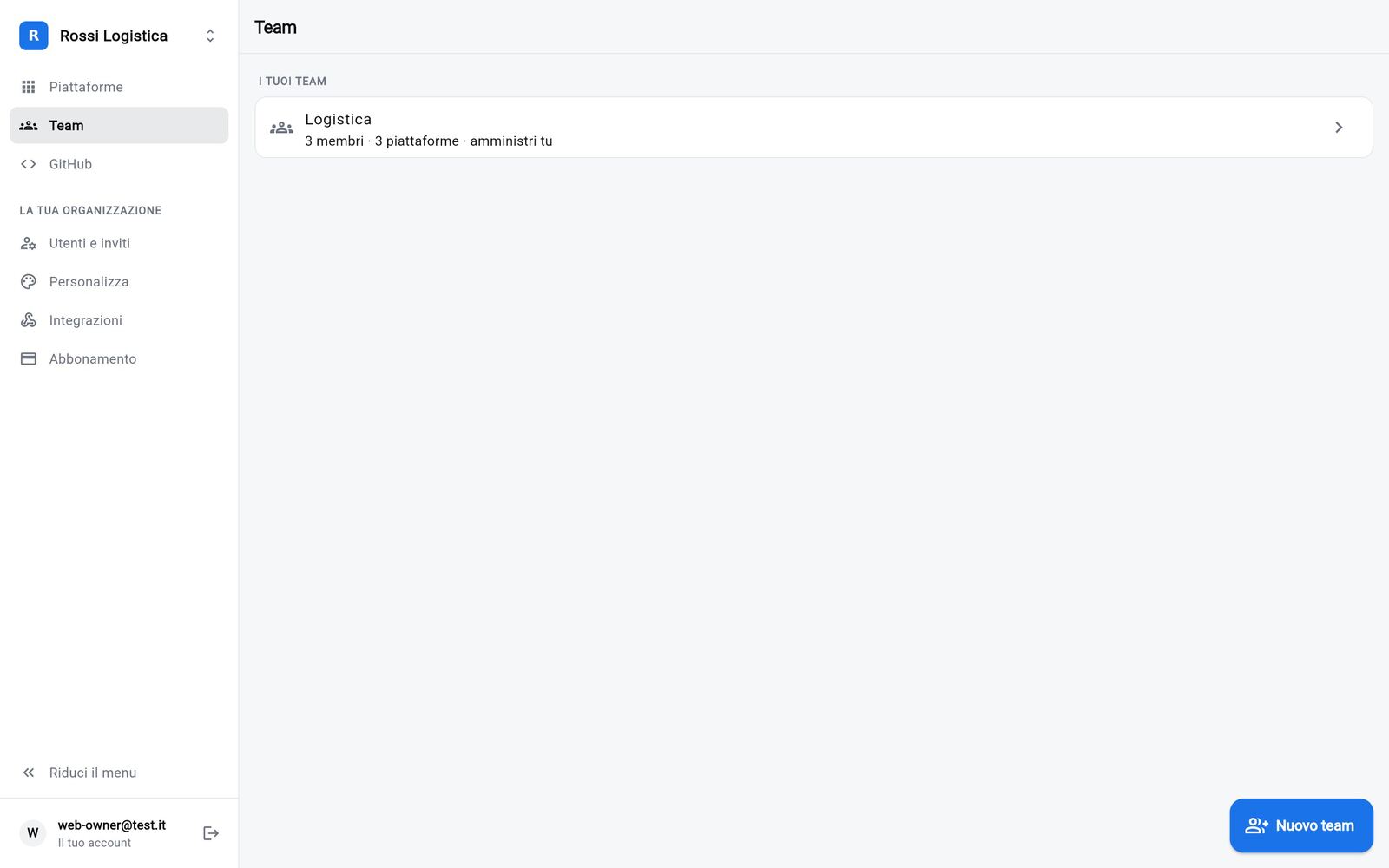
Team administrators can appoint other administrators, define what members can do (add users, share their own platforms with the team), remove users or delete the team.
Sharing a platform
Open the menu of one of your platforms (⋯ button, right click or long press) › Sharing and access:
- People: enter the recipient's e-mail and select Share. If they already belong to the organization, the platform appears in their home at once (and they receive an e-mail, if the server is configured to send one). If they have no account yet, App Drive generates an invitation: the code is shown for forwarding and, once they sign up, the platform appears in their home. For each user choose Can view or Can edit; invitations not yet used can be withdrawn.
- Teams: select the teams to grant access (or create one with New team). For each team choose Can view (open only) or Can edit (also upload new versions and run builds from GitHub). Name, icon, sharing and deletion remain with the owner.
- Link: the address to share. With Login required on, only authorized users (the owner and the selected people and teams) get in from the browser, after authenticating; with it off, anyone with the link can open it. A padlock appears next to the name. Anyone attempting to access without authorization sees the account used and how to request access.
Members find shared platforms in their home, marked with the people icon next to the name: they can open them (even when login is required), make them available offline and reorder them, but not delete them. Non-owners can only archive them, i.e. remove them from their own home (see The home).
Publishing platforms
Everything starts from Add app: the button at the top of the home on desktop, or menu ⋯ › Add app on smartphones. The available sources are:
| Source | When to use it |
|---|---|
| From an address | The application is already published: Lovable, Bolt, Replit, v0, Cloudflare or your own domain. |
| From Vercel or Netlify | The application is a Vercel or Netlify project: select it from the list and monitor its deploys. |
| From GitHub | The code is on GitHub (including Lovable, Bolt and v0 projects, which sync there): App Drive builds and hosts the application on every push. |
| Upload a .zip file | The build folder is available locally. |
With GitHub and .zip the application is hosted by App Drive at
https://<name>.apps.somio.it; with an address, Vercel or Netlify it stays on
its original hosting and App Drive integrates it. In the browser,
Connections in the side menu gathers the same sources and the connected
accounts (GitHub, Vercel, Netlify).
From GitHub (recommended)
Every push to the selected branch triggers an automatic build and release, within 2–5 minutes.
- Select Add app › From GitHub (in the browser also Connections › GitHub) and then Connect a GitHub account. Choose the repositories App Drive may access, private ones included, and confirm on GitHub.
- Select New platform from GitHub: specify repository, branch, folder (for monorepos) and the short name of the address, then Connect and publish.
- App Drive adds the workflow
.github/workflows/appdrive-<name>.ymland the publishing token to the repository. The project type (Flutter, React, Vue, Angular, Svelte, Astro, Next.js with static export, HTML) is detected automatically.
Until the first build completes, the icon shows an orange hourglass.
To link a repository to an existing platform, open its icon's menu › GitHub and publishing. The same screen lists the latest builds and lets you start a new build.
Build variables
If the project runs locally with variables, for example
flutter run --dart-define=SUPABASE_URL=<url> --dart-define=SUPABASE_ANON_KEY=<key>
or a .env file with VITE_ variables, the GitHub build must receive them
too:
- Open the platform's menu › GitHub and publishing › Build variables.
- Select Paste from flutter run or .env and paste the command or file you use.
- Confirm with Save and rebuild.
Variables are stored in App Drive, not in the repository. In a web app, however, they end up in the site's code and can therefore be read by anyone who opens it: URLs and public keys (such as Supabase's anon key, protected by Row Level Security) are appropriate, never secret keys.
From a .zip archive
Compress the web build folder (with index.html at its root) and upload it
from Add app › Upload a .zip file. A single index.html is accepted as
well. For updates: platform menu › Upload a new version.
Every unknown path returns index.html, supporting client-side routing
(React Router, go_router). The icon is taken from the project's
manifest.json and can be replaced with Change icon.
From an address (Lovable, Bolt, Replit, v0)
Add app › From an address: enter the application's address (https://)
and optionally a name. The platform appears in the home with icon, teams,
sharing and "Report"; App Drive detects where it is hosted (for example
Hosted on Lovable). It also gets an App Drive link,
https://<name>.apps.somio.it, which leads to the site.
Inside App Drive the application opens within the app; if the site does not allow embedding, the browser opens it in a new tab (the platform's menu explains why).
From Vercel or Netlify
- Add app › From Vercel or Netlify (in the browser also Connections).
- Connect the account with a personal token: on Vercel from Account › Tokens, on Netlify from User settings › Applications › Personal access tokens. The token is stored encrypted on App Drive and can be disconnected at any time.
- The list of projects appears: select Import. A project already in the home (imported by you, by a colleague or added with the same address) shows Already in the home and cannot be imported twice.
From the platform's menu (Deploys on Vercel or Netlify) you can see the status of the latest deploy and, by configuring a deploy hook, start a new one.
Supabase back end: functions and secrets
Many applications built with Lovable, Bolt or similar tools use Supabase as their back end. From the platform menu, Supabase: functions and secrets gathers what it takes to keep it in line:
- Project: App Drive recognizes the project the application uses (from
the
…supabase.coaddress in the build or in the repository). Connect the account with an access token created at supabase.com › Account › Access tokens (stored encrypted) and confirm the suggested project. - Edge Functions: the functions in
supabase/functionsand those already deployed, with version and date. Deploy sends the function from the linked GitHub repository (its folder and the shared code in_shared), honoringverify_jwtinsupabase/config.toml. When a deploy fails, Diagnosis explains the cause with the AI and drafts the prompt for the tool the application was built with. With Deploy on every push on, after each build from GitHub the changed functions are deployed; unchanged ones stay as they are, and a failed one is retried only when its code changes. Results show on the same page and in the activity log. - Secrets: App Drive reads which keys the functions need
(
Deno.env.get) and flags those not yet set on the project. Set saves them straight to Supabase; Where do I find them? uses the AI to say what they are and where to get them. App Drive neither keeps nor shows the values.
Database migrations (supabase/migrations) are reported, not applied: run
them from Supabase, with the SQL editor or supabase db push.
Host on App Drive: restricted applications
App Drive's login protects the App Drive link of a platform hosted
elsewhere, but not the site's direct address (for example
<project>.vercel.app or <project>.lovable.app), which remains reachable
without authentication by anyone who knows it. App Drive cannot restrict
access to a site it does not host, and says so on the sharing screen.
For complete protection, open the platform's menu › Host on App Drive and choose From GitHub or Upload .zip. With the first version the platform moves to App Drive keeping link, teams and settings; from then on no content is reachable without login. Until then the original site stays live and can be decommissioned afterwards.
Storage and number of platforms
Each organization has a platform and storage limit set by its plan (Plans and subscription). Storage includes every version kept. Current usage is shown in Account.
Using platforms
The home
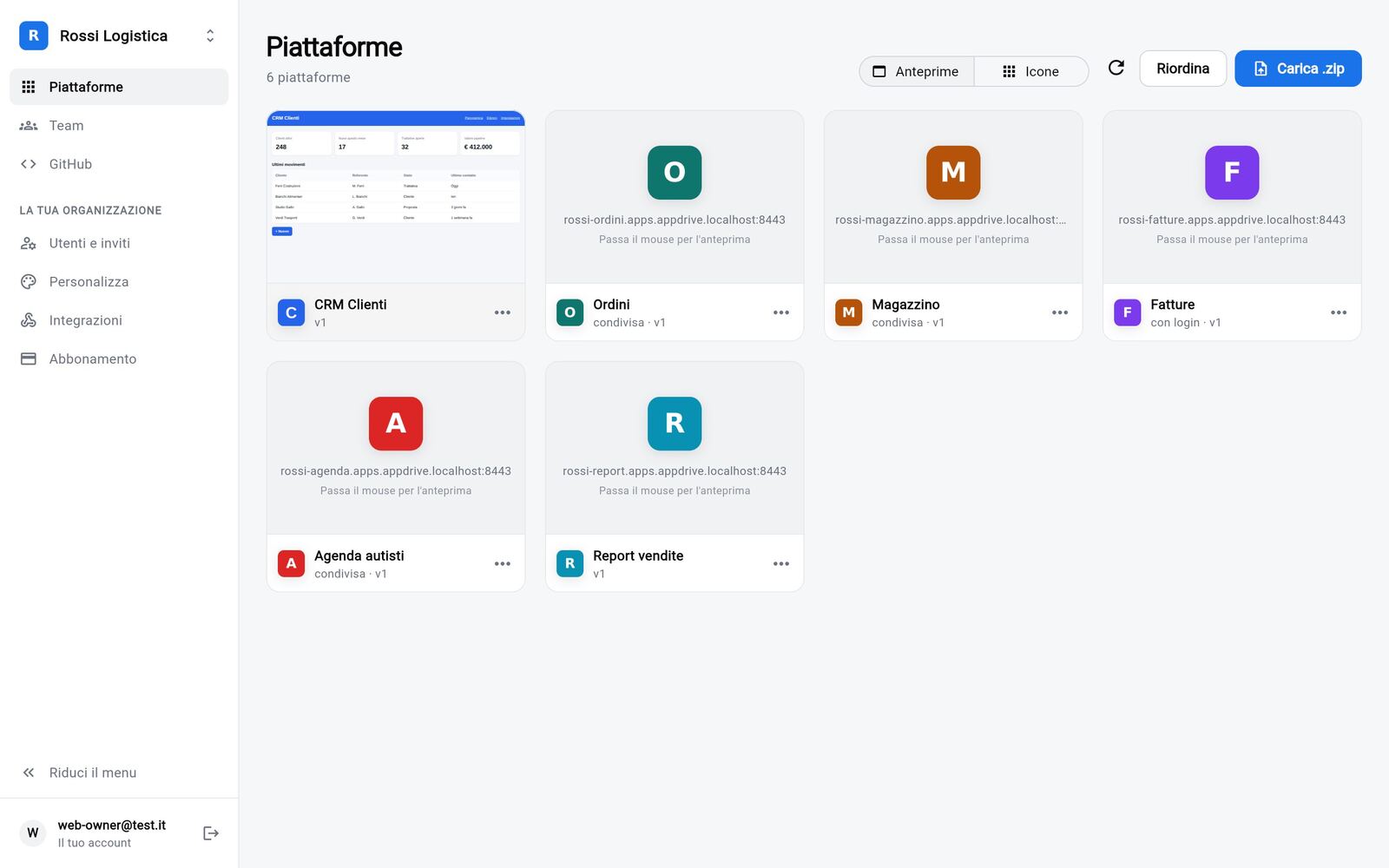
Select a platform to open it. In the browser the home shows platforms as cards with a live preview (or as icons); on smartphones as icons, following mobile conventions.
- Archiving: platform menu › Archive (remove from home), or the – in Edit the home. The platform is removed from your home only: it is not deleted and nothing changes for other users. It is available in Archive (in the browser in the side menu, on smartphones in the ⋯ menu) and can be brought back with Restore. Only the owner can delete a platform from the server.
- Ordering: menu ⋯ › Edit the home, then drag the icons. The order is saved on the server and is the same on every device.
- Platform menu: with the ⋯ button (in the browser it appears when hovering over the icon), with a right click or, on smartphones, a long press. It includes sharing, offline copy, new version, GitHub, name and icon.
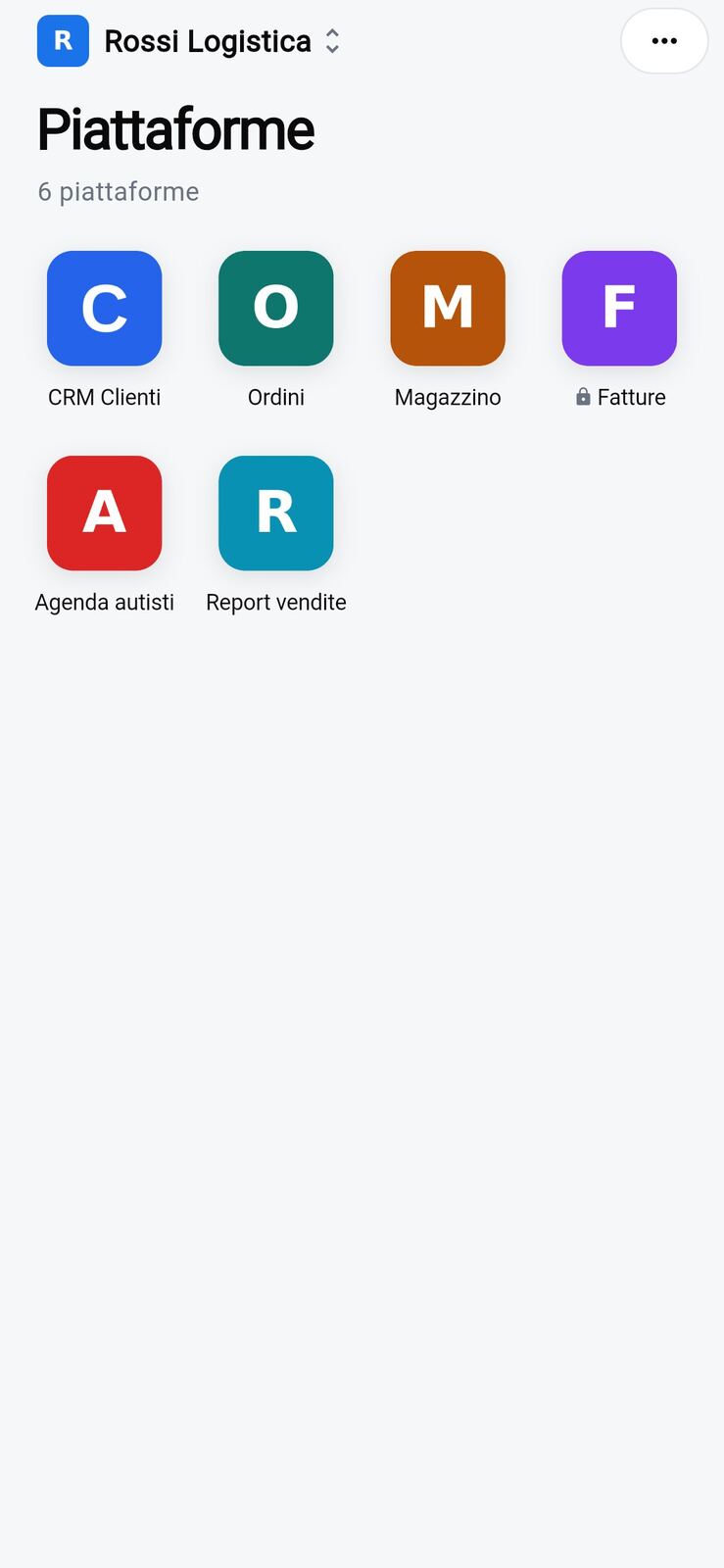
In the browser: collapsed menu and side-by-side platforms
- Collapse the menu (at the bottom of the side menu) shows icons only, leaving more room for the open platform.
- Open a platform alongside: with a platform open, the alongside button opens another next to it. Drag the central divider to adjust the sizes (double-click to return to an even split); App Drive remembers the layout. At most two platforms can be shown side by side: opening a third asks which to replace, and the replaced one stays open in the background, exactly as it was.
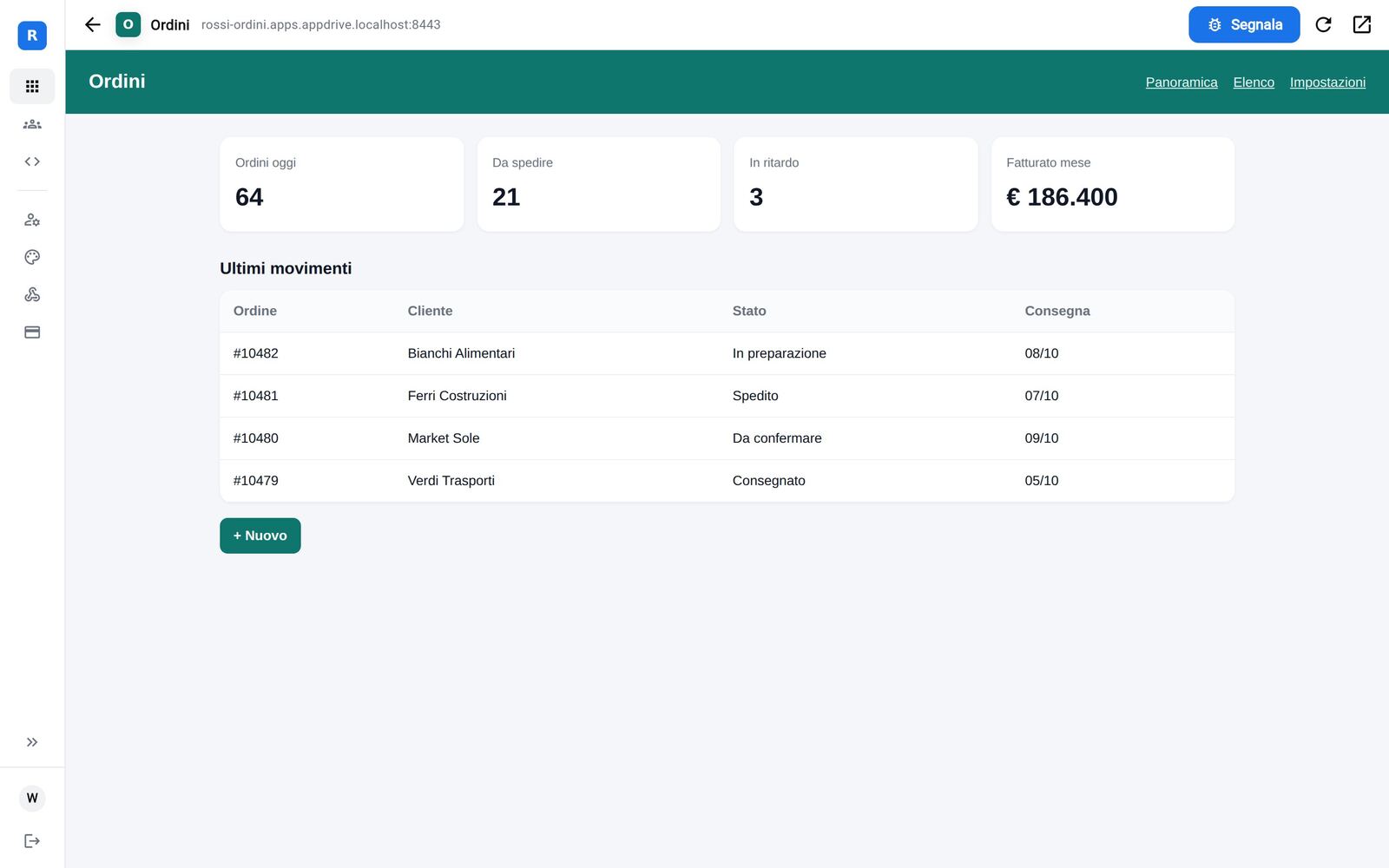
On smartphones: offline copies
Platform menu › Make available offline: the app downloads a copy, which opens when there is no network or the server does not respond. When a new version is available, the icon shows a blue indicator: Update offline copy (or Update offline copies from the ⋯ menu to update them all).
Company brand
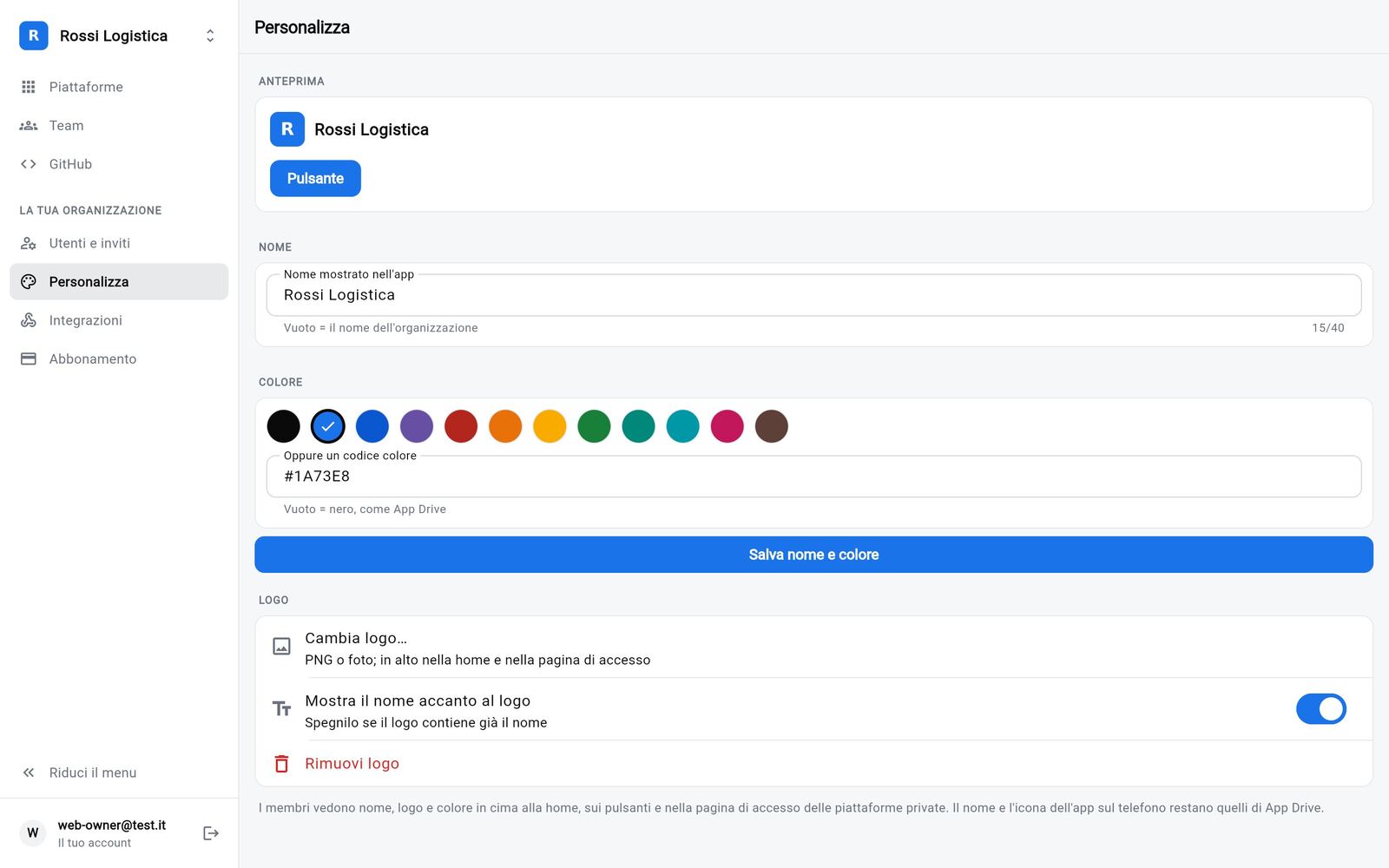
In Branding (administrators) you set the organization's name, color and logo. Users see them at the top of the home, on buttons, on the sign-in page and on the login page of restricted platforms. If the logo already includes the name, turn off Show the name next to the logo.
The server owner can customize each client from Client organizations (organization menu › Branding): each client then sees its own brand or the agency's.
Cloud data
Available on the Pro plan, for applications hosted by App Drive.
Applications built with AI usually store data in the browser: it stays on one device and is lost when changing phone or browser. With cloud data, App Drive stores it with no code changes.
Platform menu › Cloud data, then choose:
| Option | Behavior |
|---|---|
| Only in the browser | Default: each device keeps a separate copy. |
| Per user | Each user accesses their own data from all their devices. |
| Shared | All users of the application view and edit the same data, for example a shared log. |
- With cloud data the platform requires login: only the users and teams it is shared with get in. To make it public again, turn cloud data off first.
- On first activation App Drive imports the data already in the browser, with no loss.
- The same screen shows the storage used and offers export to JSON and full deletion.
- Limit of 5 MB per user (or per application, if data is shared). Sessions of other services (Supabase, Firebase) are never copied.
- In shared mode, other users' changes appear the next time the application is opened.
Partner agencies and clients
Reserved for partner agencies, subject to activation.
From the ⋯ menu › Clients the agency manages its clients independently:
- Add client: enter the name and optionally the contact person's e-mail. The client immediately gets an isolated space, with the agency's logo and color if "With my brand" is on. The agency is its administrator (access from the organization switcher or with Join); the contact person receives an administrator invitation.
- For each client you see apps, users, estimated monthly cost and, if you set your markup, the client price.
- You can suspend, reactivate or rename a client, invite further administrators and remove a client with no platforms.
Where the activation provides for it, in Payments from clients the agency connects its Stripe account and drafts its Contracts; it then configures, for each client, Contract and fee and One-time payments (for example activation). The client must sign the contract and settle the amounts before accessing the applications; if payment stops, access is suspended automatically. Payments are credited to the agency's Stripe account; signatures are available in Signatures.
For each client the agency also sets Limits and permissions: how many platforms the client may publish (with 0 only the agency publishes), the maximum number of users, and whether the client may invite new users, change the branding or configure integrations. New clients start with branding and integrations managed by the agency. The limits are included in the contract the client signs, and the client sees the agency's name under its own.
Billing is centralized: client applications are included in the agency's "Pay per use" subscription. Clients do not see the Subscription section; if the agency's payment fails, its clients are suspended with it and reactivated once it is settled.
Errors and usage with AI
Usage statistics on every plan; errors, issues and AI on the Pro and "Pay per use" plans. For applications hosted by App Drive.
App Drive monitors applications automatically, with no installation or code changes. For every hosted application it tracks opens and collects the errors its pages raise in the browser.
Platform menu › Errors and usage:
- Opens, visitors and users with access over the last 7, 14 or 30 days, with the daily trend.
- Errors and error-free visitors (the share of visitors who encountered no error): a value below 95% indicates an issue to address.
- Issues: with Analyze with AI, errors and reports ("Report") are grouped into issues, with severity (critical, high, medium, low), probable cause and recommended actions.
- Fix: for each issue the AI prepares the fix.
- If the code is on GitHub, it applies the fix on a new branch and opens the pull request: after review and merge, the build starts automatically.
- Otherwise it provides a prompt to use in the tool the application was built with (Lovable, Bolt, Cursor, v0).
- Verification: when the new version is published the issue moves to Checking on the new version. If the error does not recur for two days the issue closes automatically; otherwise it reopens marked Back after the fix.
- Active users: for applications with login, users and frequency of use are shown.
By default errors, reports and usage are visible to the owner and to those who can edit the platform. In Sharing and access › Monitoring the owner can turn on Share errors and usage: people and teams with "Can view" then see the dashboard too, read only (no AI analysis, fixes or status changes).
From the ⋯ menu › App status you can compare all applications: those with urgent issues first, with opens, errors and the trend over the last two weeks. When there are new errors the ⋯ menu shows an indicator and the item shows their number: selecting it opens the errors (directly those of the application, if there is only one) and resets the counter.
In each application's menu, Errors and usage and Reports from the site (SDK) are grouped under Monitoring.
Build diagnosis
If a GitHub build fails, Diagnose appears next to the build in GitHub and publishing: the AI analyzes the log and explains the cause and the recommended actions. If a build variable is missing, you can add it directly (Add followed by the variable name) and confirm with Save and rebuild; if the code must change, a prompt for your development tool is provided.
AI and data
The AI is Anthropic's Claude. It receives logs, errors and (for pull requests) project files only on explicit request; build variable values never leave App Drive. Administrators can turn it off for the whole organization in Integrations › AI. Errors are kept for 30 days, reports for 90; visitors are anonymous (a random browser identifier) and users are identified only in applications with login.
Reports and integrations
Available on the Pro plan.
The Report button
On every platform, in the App Drive bar outside the platform itself, there is a Report button. The user selects Bug or Change, describes the case and confirms with Send. App Drive automatically adds platform, page, author, screen and browser, making screenshots and manual descriptions of the context unnecessary.
Where reports are delivered
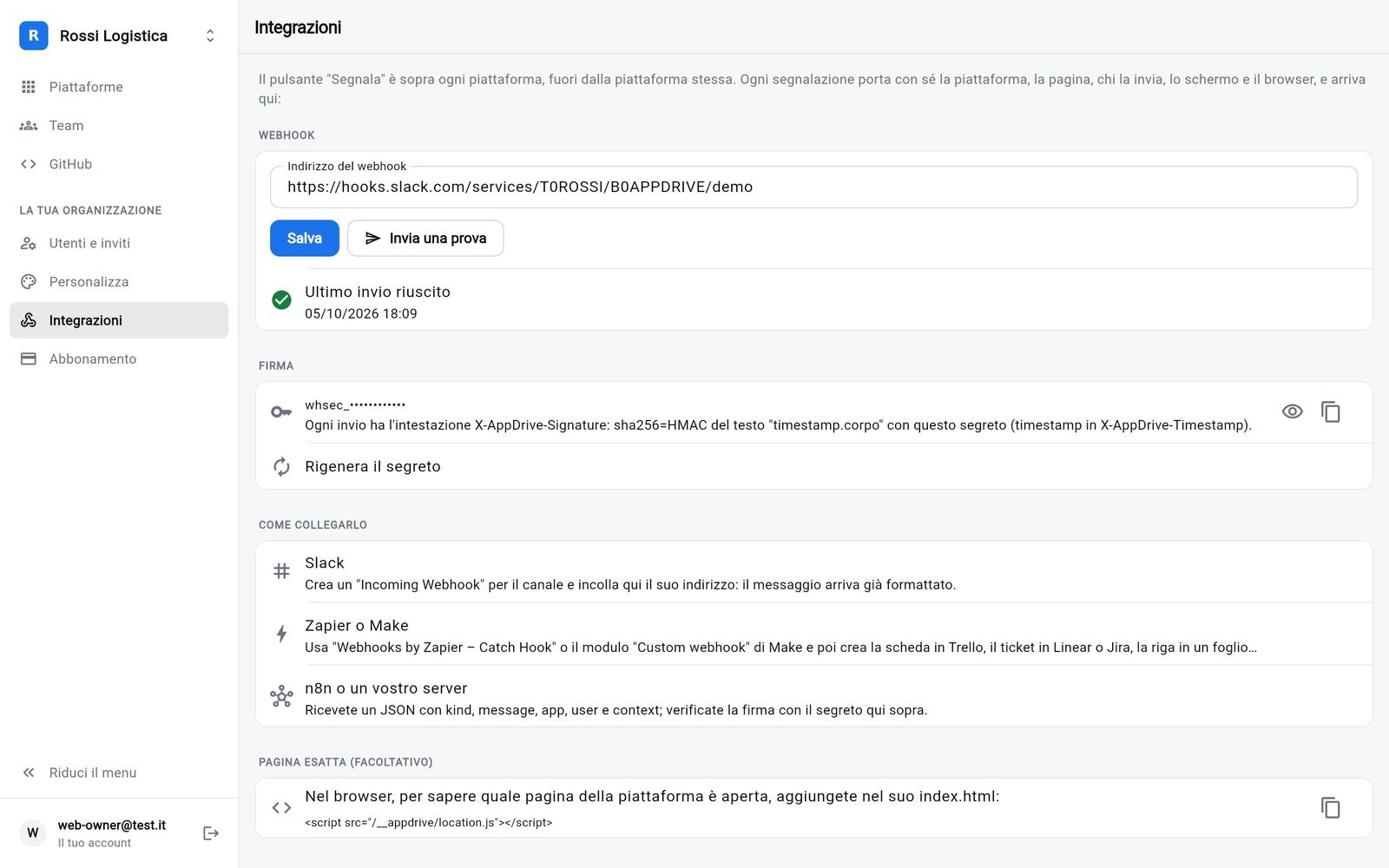
In Integrations (administrators) enter a webhook address and select Send a test:
| Tool | Setup |
|---|---|
| Slack | Create an Incoming Webhook for the channel and enter its address: the message arrives already formatted. |
| Zapier or Make | Use Webhooks by Zapier – Catch Hook or the Custom webhook module, then forward the report to the desired destination: Trello, Linear, Jira, e-mail or spreadsheets. |
| n8n or a dedicated server | Receives a JSON with kind, message, app, user and context, signed with the secret shown on the page. |
Without a webhook, reports are e-mailed to whoever published the platform. If a delivery fails, App Drive retries for a few seconds and then falls back to e-mail; the outcome of the latest delivery is shown in Integrations.
Plans and subscription
| Base | Pro | Pay per use | |
|---|---|---|---|
| Price (beta, excluding VAT) | €99/month | €249/month | €0.47 per platform per day, no fixed fee |
| Platforms per organization | up to 7 | up to 17 | no preset limit |
| Storage per organization | 1 GB | 3 GB | 10 GB |
| Branded portal, hosting, GitHub and .zip | ✓ | ✓ | ✓ |
| Applications from an address, Vercel and Netlify | ✓ | ✓ | ✓ |
| Users, teams, sharing, permissions, multiple organizations | ✓ | ✓ | ✓ |
| Report button and webhooks | — | ✓ | ✓ |
| Cloud data | — | ✓ | ✓ |
| Opens and usage of every application | ✓ | ✓ | ✓ |
| AI diagnosis of builds and errors, with fixes | — | ✓ | ✓ |
No cost per user. The beta price remains guaranteed for companies joining now.
Pay per use
Suited to a small number of applications or temporary projects: no fixed fee, you pay for active platforms day by day, invoiced at month end. The daily count includes all of the organization's platforms (archived ones too, which stay online for other users); once a platform is deleted, charges stop from the following day. Features are those of the Pro plan. Subscription shows the price per platform per day, today's platforms and the estimate for the period; the exact amount is on the Stripe invoice.
During and after the beta
- Until 31 January 2027 App Drive can be used without a subscription, with all Pro features.
- 30 days before the deadline administrators receive a notice.
- After 31 January the administrator is taken to Subscription to choose a plan; for 7 days the app keeps working normally. After that, without a subscription, the organization is suspended: access is blocked and platforms go offline, but no data is deleted.
Notices are shown to administrators only, as they are the only ones able to pay.
Paying and managing the subscription
In Subscription (administrators, in the browser) you choose Base, Pro or Pay per use and pay through Stripe: App Drive has no access to card details. From Card, invoices and cancellation you update the payment method, download receipts or cancel. Plans can be changed at any time: the difference appears on the next invoice.
If a payment fails, Stripe retries for a few days and platforms stay online. If the subscription remains unpaid or is cancelled, the organization is suspended. To reactivate it, select Pay and reactivate on the sign-in page: once payment is complete, everything becomes available again.
Moving from Pro to Base deletes no data: it only prevents new platforms and uploads beyond the Base limits.
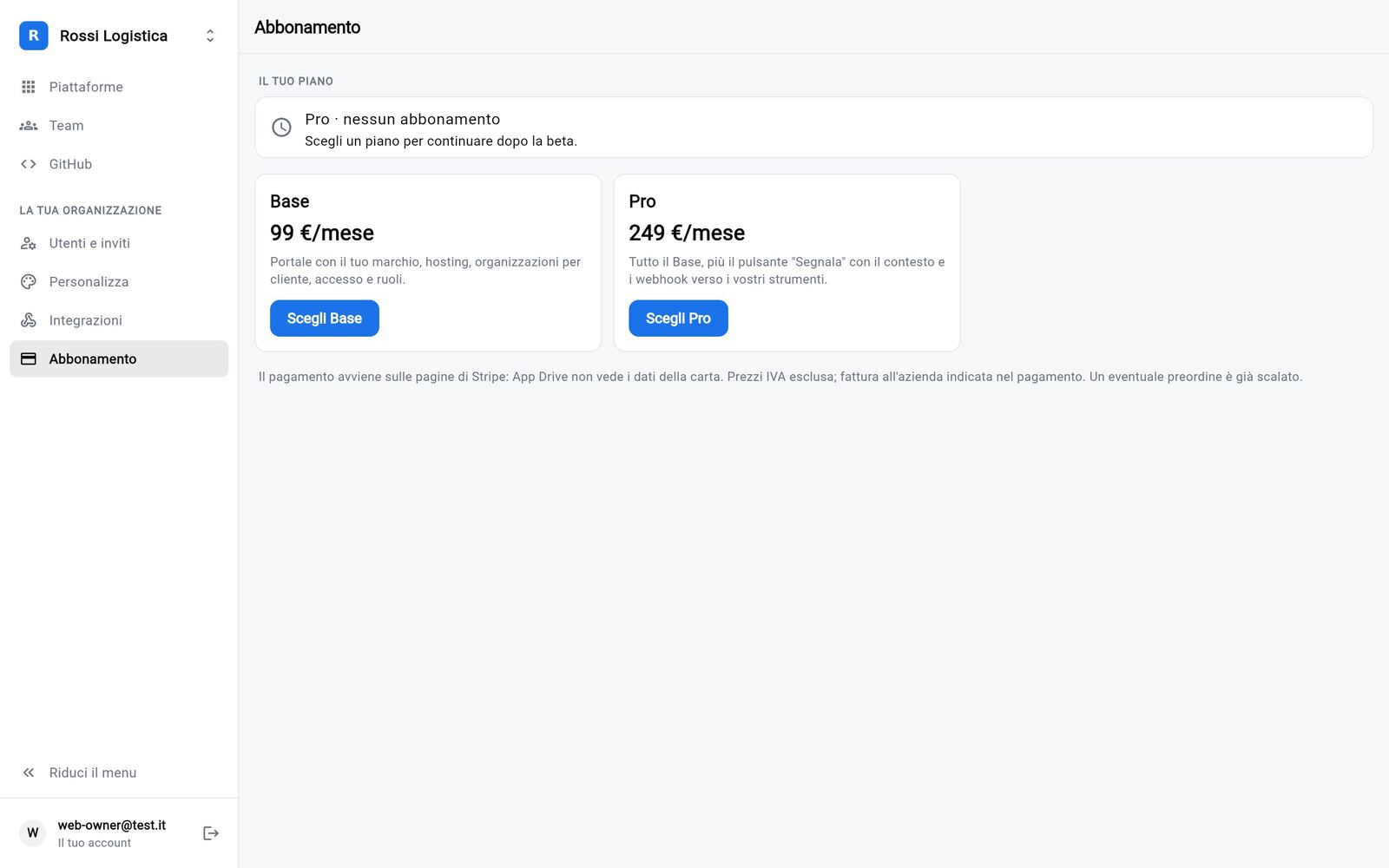
The iPhone and Android apps show only the subscription status: payments are made in the browser.
Account
In Account (in the browser at the bottom left; on smartphones the first item of the ⋯ menu):
- storage and platforms used against the limits;
- password change, which closes active sessions on other devices;
- language: automatic (the device's), Italian or English;
- my organizations, to switch organization, join with a code or leave one;
- delete account: deletes the account and its platforms in every organization.
Security and privacy
- Infrastructure hosted in a data center in the European Union.
- Encrypted connections; passwords are stored only in non-reversible form and cannot be read by anyone, Somio included.
- Organizations isolated from one another.
- Restricted platforms available to authorized users only.
- No advertising, profiling or tracking tools.
- A data processing agreement (GDPR Art. 28) is available for your company and its clients: request it at tickets@somio.it.
Details are in the privacy notice (in Italian).
FAQ
How do I invite someone outside the organization directly into a team? From the team select Add member › Add by e-mail: if the organization allows team admins to invite, App Drive generates a code that registers the person and adds them directly to the team. Otherwise an administrator invites them first from Users and invites, and they are then added to the team.
Must every user belong to an organization? Yes: every account belongs at least to the organization of its invite code. The same account can then join other organizations.
Do the agency's clients need a subscription? No: pricing is per agency, with unlimited clients. The agency pays for its own organization's subscription; client organizations activated on its behalf receive no payment notices.
Can I publish an application with a back end? App Drive hosts the front end (static site). The back end stays on Supabase, Firebase or a dedicated server; public keys are supplied through build variables. If saving the data the application keeps in the browser is enough, cloud data is available.
What does someone opening the link of a restricted platform see? A sign-in page with the organization's brand. Only authorized users get in: whoever published it and the people and teams it is shared with.
An application on Vercel (or Lovable) was made restricted: why is the site's address still reachable? Because the site is not hosted by App Drive: login protects the App Drive link, not the direct address. For complete protection use Host on App Drive.
An application built with AI loses its data when the device changes. How is this solved? By enabling cloud data (Pro plan): with no changes to the application, data is stored on App Drive.
What happens to the data if payment stops? The organization is suspended with no deletion: once paid, everything becomes available again. To request full deletion of the data, write to tickets@somio.it.
Do platforms work offline? On smartphones yes, if the platform has been made available offline. Data the platform retrieves from its own server still requires a connection.
Support Write to tickets@somio.it.